PIWIK

Monday, November 21, 2016

Turn on or off Cached Exchange Mode - Applies To: Outlook 2010


Cached Exchange Mode saves a copy of your mailbox on your computer which provides quick access to your data and is frequently updated with the server that runs Microsoft Exchange.
Note:  A Microsoft Exchange Server account is required.
More information about Cached Exchange Mode
Cached Exchange Mode enables a better experience when you use an Exchange account. In this mode, a copy of your mailbox is saved on your computer. This copy provides quick access to your data, and it is frequently updated with the server that runs Microsoft Exchange.
If you are unable to turn on Cached Exchange Mode, one or more of the following might apply:
  • An Exchange account doesn't exist in your Microsoft Outlook profile     This feature requires that your Outlook profile contain an Exchange account.
  • Your Exchange server administrator has disabled this functionality     Exchange administrators can disable this feature in Outlook. For more information, contact your Exchange administrator.
  • Microsoft Terminal Services is installed     Cached Exchange Mode is not available on computers that run Windows Server when Microsoft Terminal Services is installed.

Turn on or off Cached Exchange Mode

  1. Click the File tab.
  2. Click Account Settings, and then click Account Settings.
    Account Settings in the Backstage view
  3. On the E-mail tab, click the Exchange account, and then click Change.
  4. Under Microsoft Exchange server, select or clear the Use Cached Exchange Mode check box.
    Use Cached Exchange Mode check box
  5. Exit and then restart Microsoft Outlook 2010.
When you are using Cached Exchange Mode, an e-mail message may remain in the Outbox for up to one minute until the next synchronization with the server that runs Exchange occurs. If you want to send the message immediately, do the following:
  • On the Send/Receive tab, in the Send & Receive group, click Send All.
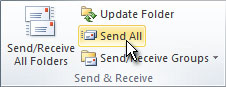
    Send & Receive group in the ribbon
Top of Page

Manually configure message download preferences

Cached Exchange Mode can automatically optimize data transmissions for the connection speed to the server that runs Exchange. However, you can manually change the download preferences.
  1. On the Send/Receive tab, in the Preferences group, click Download Preferences.
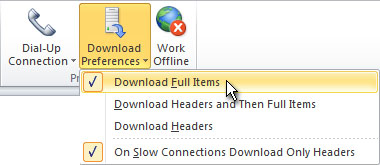
    Download Preferences command in the ribbon
  2. Click one of the following options:
    • Download Full Items      This is the default setting. All messages and attachments are downloaded.
    • Download Headers and Then Full Items      After message headers are downloaded, downloading of message bodies and attachments begins. When downloading a large amount of items, this setting is useful so you can see message headers quickly and then choose a message to open without first waiting for all messages to be downloaded in their entirety.
    • Download Headers      No message bodies or attachments are downloaded. This reduces the data transfer amount and connection time. When you open an item, the full item is then downloaded from the mail server.
    • On Slow Connections Download Headers Only      When a slow connection is detected, message bodies and attachments are not downloaded. If this option is not selected, the three previous choices determine what is downloaded regardless of the connection speed.
In addition to Exchange folders, Cached Exchange Mode works with shared folders. Examples of shared folders include another person's Exchange folders when you are using Delegate Access, or SharePoint folders. To turn on or off shared folder support when you are using Cached Exchange Mode, do the following:
  1. Click the File tab.
  2. Click Account Settings, and then click Account Settings.
    Account Settings in the Backstage view
  3. On the E-mail tab, click the Exchange account, and then click Change.
  4. Click More Settings.
  5. On the Advanced tab, under Cached Exchange Mode Settings, select the check boxes for the options you want.

Monday, November 7, 2016

Setting up a Team Calendar/Group Calendars

Video

To have an overview of each other’s activities and availability, we were thinking about implementing a Team Calendar.

Option 1

When you are in an Exchange environment, rather than to create an additional Team Calendar, consider sharing your Calendar with your team mates instead.
By creating a Calendar group for your team, you can quickly select them all and display them in the Overlay View to get a combined overview of the activities and availability of the entire team.

Pick members from an Address Book or Contacts list

In Calendar, on the Home tab, in the Manage Calendars group, click Calendar Groups, and then click Create New Calendar Group.

Type a name for the new calendar group, and then click OK.

Under Address Book, choose the Address Book or Contact list from which you want to pick members of your group.

Browse for names or type them in the Search box, click the name that you want and then click Group Members. Repeat this step for each calendar that you want to include in the group, and then click OK.

Create a calendar group based on the calendars that you are viewing

In Calendar, on the Home tab, in the Manage Calendars group, click Calendar Groups, and then click Save as New Calendar Group.

Type a name for the new calendar group, and then click OK.

NOTES:

The new calendar group opens beside any calendars or groups that were already open.

To add other calendars to the view, select the check boxes of the calendars that you want in the Navigation Pane.


Add calendars to a calendar group

To add a calendar to an existing calendar group, in the Navigation Pane, drag it to the calendar group that you want.

If the calendar that you want to add is not in your Navigation Pane, do the following:

In Calendar, on the Home tab, in the Manage Calendars group, click Open Calendar, and then click the type of calendar that you want.

Browse for names or type them in the Search box, click the name that you want and then click Calendar. Repeat this step for each calendar that you want to include in the group, and then click OK. The added calendars appear in the Shared Calendars folder in the Navigation Pane.

NOTE:  In Schedule View, you can click the Add a Calendar box at the bottom of the view and then enter the name that you want. The calendar is added to the Shared Calendars folder in the Navigation Pane.

In the Navigation Pane, drag the calendar from Shared Calendars to the calendar group that you want.


NOTE: You can move a member of any calendar group to a different group. In the Navigation Pane, drag the calendar to the calendar group that you want.

View a calendar group

In the Navigation Pane, select the calendar check box.

Calendar Groups in the Navigation Pane

Calendar Groups in the Navigation Pane

Group calendars appear side by side or in horizontal Schedule View. To see the calendars in overlay mode, do the following:

On the Home tab, in the Arrange group, click Day, Work Week, Week or Month.

The calendars are arranged side-by-side.

Click the View in Overlay Mode arrow on the tab on each calendar that you want to overlay.

NOTES:

Any calendar in the Navigation Pane can be viewed together with any group, even if it is not a member of that group. You can also view multiple calendar groups together. Select the check box of any calendar or calendar group that you want to view.


You can hide any calendar from the view by clearing its check box in the Navigation Pane, or by clicking Close Calendar on the calendar's tab. This only changes the calendars in the current view. It does not remove any calendar from a calendar group.

Delete a calendar group

In the Navigation Pane, right-click the calendar group that you want to delete, and then click Delete Group.


Monday, October 31, 2016

Phishing Attack Prevention: How to Identify & Avoid Phishing Scams

Phishing attacks are one of the most common security challenges that both individuals and companies face in keeping their information secure. Whether it's getting access to passwords, credit cards, or other sensitive information, hackers are using email, social media, phone calls, and any form of communication they can to steal valuable data. Businesses, of course, are a particularly worthwhile target.  

"How do companies fall victim to phishing attacks and how can they prevent them?"

Employees possess credentials and overall knowledge that is critical to the success of a breach of the company's security. One of the ways in which an intruder obtains this protected information is via phishing. The purpose of phishing is to collect sensitive information with the intention of using that information to gain access to otherwise protected data, networks, etc. A phisher's success is contingent upon establishing trust with its victims. We live in a digital age, and gathering information has become much easier as we are well beyond the dumpster diving days.

There are various phishing techniques used by attackers:

Embedding a link in an email that redirects your employee to an unsecured website that requests sensitive information

Installing a Trojan via a malicious email attachment or ad which will allow the intruder to exploit loopholes and obtain sensitive information

Spoofing the sender address in an email to appear as a reputable source and request sensitive information

Attempting to obtain company information over the phone by impersonating a known company vendor or IT department

Here are a few steps a company can take to protect itself against phishing:
 
Educate your employees and conduct training sessions with mock phishing scenarios.

Deploy a SPAM filter that detects viruses, blank senders, etc.

Keep all systems current with the latest security patches and updates.

Install an antivirus solution, schedule signature updates, and monitor the antivirus status on all equipment.

Develop a security policy that includes but isn't limited to password expiration and complexity.

Deploy a web filter to block malicious websites.

 Encrypt all sensitive company information. Convert HTML email into text only email messages or disable HTML email messages. Require encryption for employees that are telecommuting.

There are multiple steps a company can take to protect against phishing.

They must keep a pulse on the current phishing strategies and confirm their security policies and solutions can eliminate threats as they evolve.

It is equally as important to make sure that their employees understand the types of attacks they may face, the risks, and how to address them. Informed employees and properly secured systems are key when protecting your company from phishing attacks.