
Cached Exchange Mode saves a copy of your mailbox on your computer which provides quick access to your data and is frequently updated with the server that runs Microsoft Exchange.
Note: A Microsoft Exchange Server account is required.
More information about Cached Exchange Mode
Cached Exchange Mode enables a better experience when you use an Exchange account. In this mode, a copy of your mailbox is saved on your computer. This copy provides quick access to your data, and it is frequently updated with the server that runs Microsoft Exchange.
If you are unable to turn on Cached Exchange Mode, one or more of the following might apply:
-
An Exchange account doesn't exist in your Microsoft Outlook profile This feature requires that your Outlook profile contain an Exchange account.
-
Your Exchange server administrator has disabled this functionality Exchange administrators can disable this feature in Outlook. For more information, contact your Exchange administrator.
-
Microsoft Terminal Services is installed Cached Exchange Mode is not available on computers that run Windows Server when Microsoft Terminal Services is installed.
Turn on or off Cached Exchange Mode
-
Click the File tab.
-
Click Account Settings, and then click Account Settings.

-
On the E-mail tab, click the Exchange account, and then click Change.
-
Under Microsoft Exchange server, select or clear the Use Cached Exchange Mode check box.

-
Exit and then restart Microsoft Outlook 2010.
-
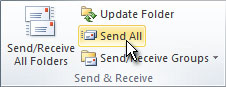
On the Send/Receive tab, in the Send & Receive group, click Send All.
Manually configure message download preferences
Cached Exchange Mode can automatically optimize data transmissions for the connection speed to the server that runs Exchange. However, you can manually change the download preferences.-
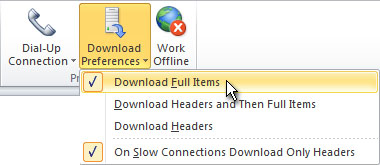
On the Send/Receive tab, in the Preferences group, click Download Preferences.
-
Click one of the following options:
-
Download Full Items
This is the default setting. All messages and attachments are downloaded.
-
Download Headers and Then Full Items
After message headers are downloaded, downloading
of message bodies and attachments begins. When downloading a large
amount of items, this setting is useful so you can see message headers
quickly and then choose a message to open without first waiting for all
messages to be downloaded in their entirety.
-
Download Headers
No message bodies or attachments are downloaded.
This reduces the data transfer amount and connection time. When you open
an item, the full item is then downloaded from the mail server.
-
On Slow Connections Download Headers Only
When a slow connection is detected, message
bodies and attachments are not downloaded. If this option is not
selected, the three previous choices determine what is downloaded
regardless of the connection speed.
-
Download Full Items
This is the default setting. All messages and attachments are downloaded.
-
Click the File tab.
-
Click Account Settings, and then click Account Settings.
-
On the E-mail tab, click the Exchange account, and then click Change.
-
Click More Settings.
-
On the Advanced tab, under Cached Exchange Mode Settings, select the check boxes for the options you want.

